Tour of the App
Where everything lives, what each part is for, and how to find any feature in seconds. Read it once and the app will feel familiar.
The five-second version
Chats live on the left. The model and Settings are top-right. You type at the bottom. Anything else — press Ctrl+K.The main window
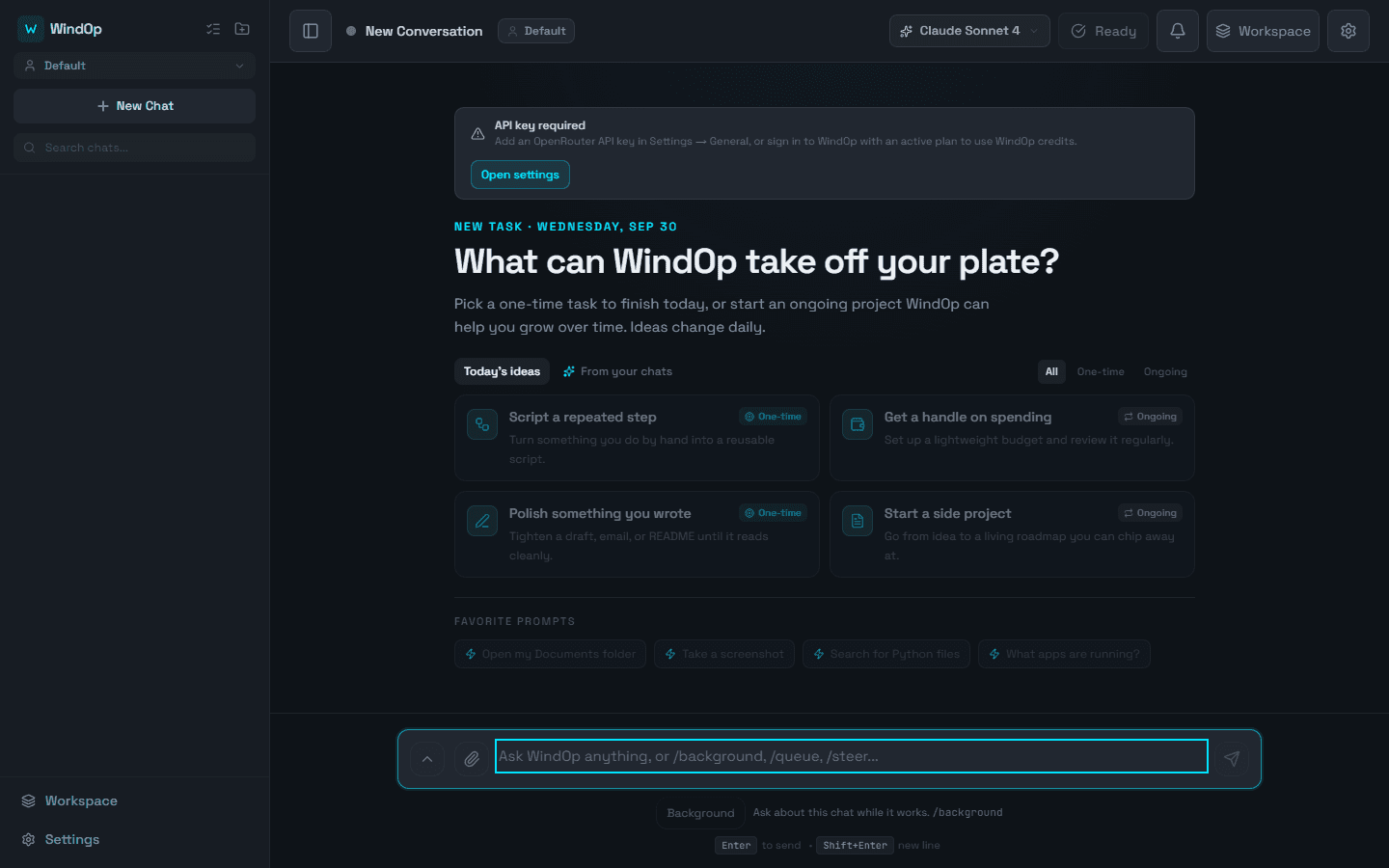
Everything happens in one window. Here is the layout, with each area numbered.
Pinned
Fix login redirect
Weekly report
Folders
▸ Website
▸ Research
search_files · “redirect” in src/
3 matches · 0.2s
Illustrative layout — your theme, model names, and chats will differ.
- 1
Chat history sidebar
Every conversation, with search, pins, and folders. Toggle it from the header.
- 2
Header
Chat title, the model switcher (Ctrl+M), Workspace, and Settings.
- 3
Conversation
Messages stream in live. Reasoning, tool calls, and results appear in order.
- 4
Run status & background work
What the agent is doing right now, and any processes still running.
- 5
Context bar
How much of the model’s context this chat is using.
- 6
Message box
Type a request, attach files, pick a favorite prompt, or run in the background.
The chat sidebar
Your conversation library. Toggle it with the sidebar button at the top-left of the header (on small windows it slides over the chat).
Search
Pinned
Folders
Right-click menu
At the top of the sidebar a small summary shows your Chats, Organized, Pinned, and Folders counts, so you can see how tidy your library is at a glance.
The header
- Chat title — click to see or rename the current conversation.
- Model switcher — the model powering this chat. Open it with Ctrl+M. Task-model shortcuts and search are inside.
- Workspace — the project-wide dashboard (see below).
- Settings — the gear, or Ctrl+,.
The message box
Where you talk to WindOp. Press Enter to send and Shift+Enter for a new line.
| Control | What it does |
|---|---|
| Attach | Add files or a whole folder for WindOp to read |
| Paste | Pasted clipboard content shows a preview first; remove it with the × if you don’t want it |
| Favorite prompts | One click to reuse a saved prompt (edit them in Settings → Personalization) |
| Run in background | Let a long task keep going while you use the app |
| Toggle AI features | Turn AI helpers like Smart Prompt on or off for this message |
Note
With Smart Prompt enabled in SettingsGeneral, vague messages can be clarified and shown as Original vs Enhanced before sending. Press Enter to confirm the rewrite.Watching the agent work
WindOp shows its work instead of hiding it. As it runs you will see, in order:
| You will see | What it means |
|---|---|
| Thought | Reasoning from thinking models, streamed live and collapsed when the answer completes. Shows a word count. |
| Tool cards | Each tool call (search, read file, run command…) with its result. Related calls are grouped into a summary you can expand. |
| File & terminal views | File edits appear as diffs; terminal output streams live. |
| Run status | A strip showing that the agent is working and what it is doing now, with a details panel and activity filters. |
| Background processes | A bar listing servers or jobs still running, with Stop and Stop all. |
| Sub-agent activity | When work is delegated, each sub-agent’s progress and usage is tracked separately. |
The context bar
The Context Memory bar shows how full the model’s working memory is for this chat, including a conversation total and any sub-agent usage. Open the Context inspector for the model and route, the next-request estimate, the context limit, and the space reserved for the reply.
Nothing is lost when context is trimmed
Original history stays available. When older turns are compacted, the inspector records it, and omitted regions can be recovered.Approvals
When WindOp wants to do something risky, it stops and asks. The dialog shows exactly what will run, where, and in which shell.
Approve command
Potentially destructive command
- Command
- Remove-Item .\build -Recurse -Force
- Working directory
- C:\Projects\my-app
- Shell / tool
- PowerShell · exec
- Allow once approves this single run.
- Always allow this exact command saves a permission for only that command, folder, and shell — never a whole tool. Give it a name if you like and revoke it later in SettingsSecurity.
- Other actions, such as deleting files, use a general Action Required confirmation.
When WindOp controls your desktop, a small overlay appears with an End desktop session button so you can stop it instantly.
Notifications
Finished tasks and requests for your input collect in the Task notifications center, so you can leave long jobs running and come back. Use Clear read to tidy up, and turn native alerts on or off in SettingsGeneral.
The Workspace
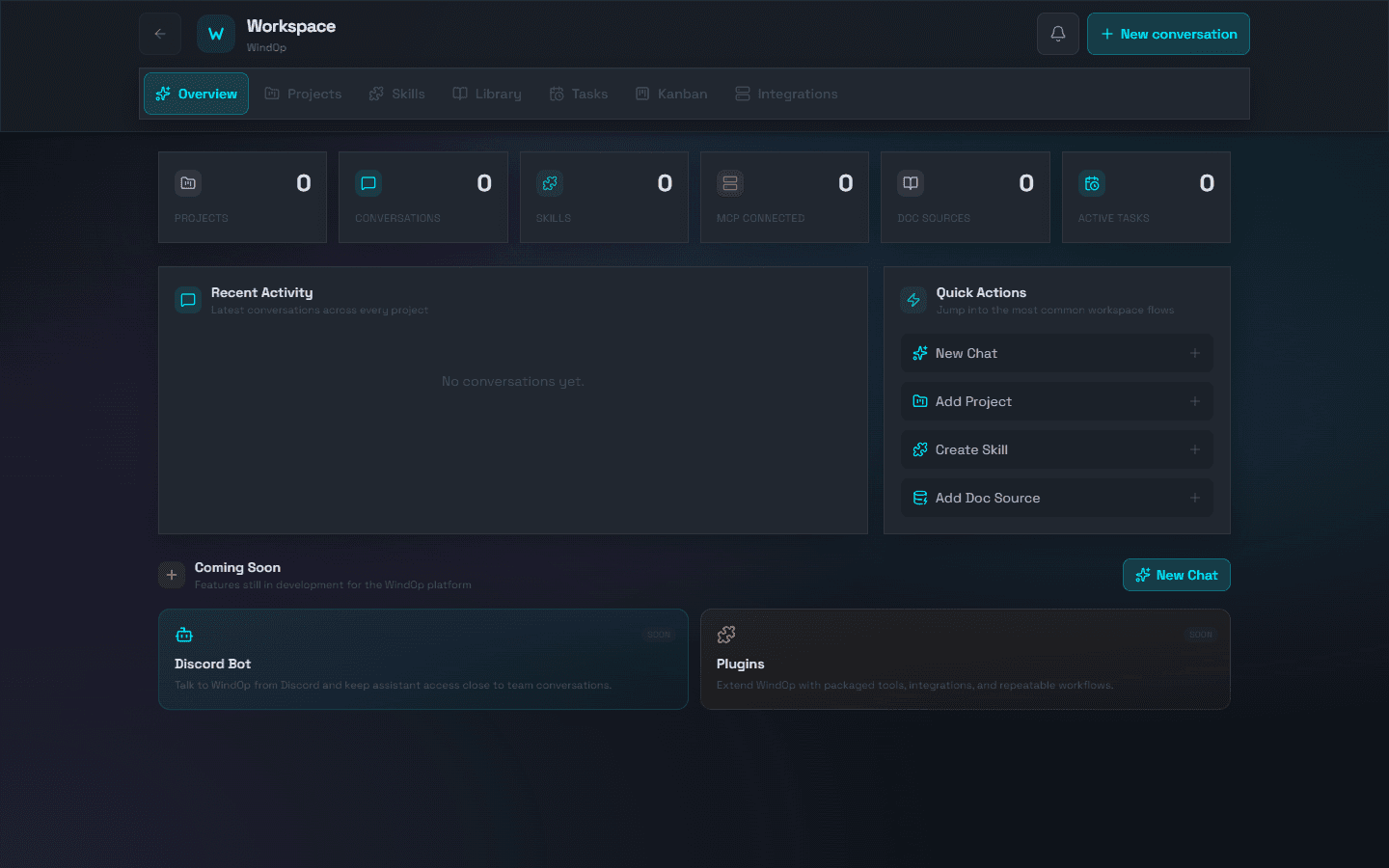
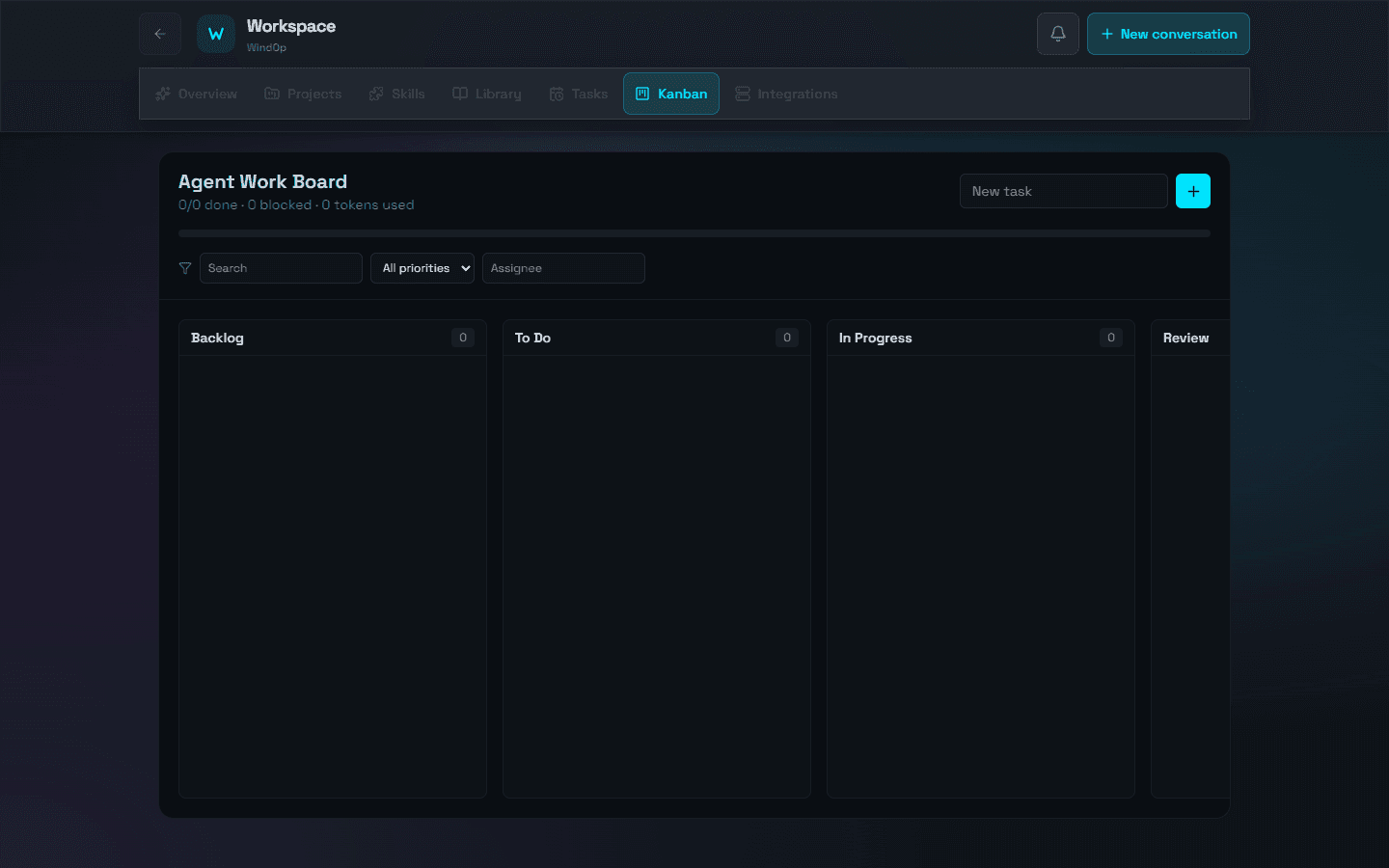
Open it with Ctrl+Shift+W or the Workspace button. It is the bird’s-eye view across all your chats and projects; Back to Chat returns you.
| Tab | Use it to |
|---|---|
| Overview | See counts for projects, conversations, skills, connected MCP servers, doc sources, and active tasks — plus recent activity and quick actions (New Chat, Add Project, Create Skill, Add Doc Source). |
| Projects | Add and search project folders WindOp should know about. |
| Skills | Browse skills by scope (Global, Project, Area) and source (WindOp, Hermes, OpenClaw); sort by name, priority, or tags. |
| Library | Manage your local documentation sources. |
| Tasks | See scheduled and running tasks. |
| Kanban | A board for planning work and dispatching it to agents. |
| Integrations | See your MCP servers with connection health, transport, and exposed tool counts. |
The Overview also lists what is still in development, so you can see what is coming.
Get anywhere fast
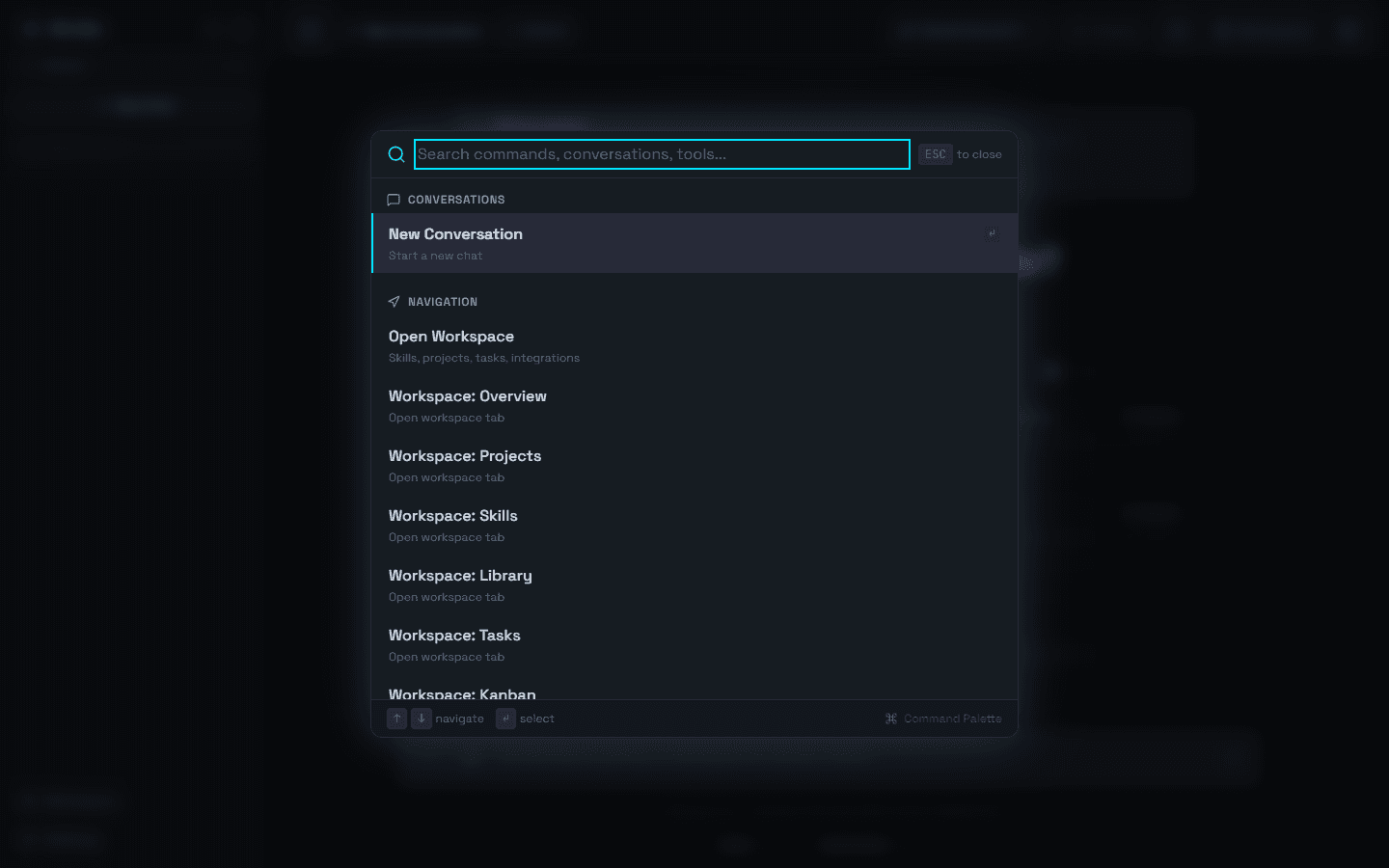
Press Ctrl+K for the command palette. It searches four kinds of results: Conversations, Tools & Models, Navigation, and Settings. Press ? outside a text field to see every shortcut, or read Keyboard Shortcuts.
Settings explorer
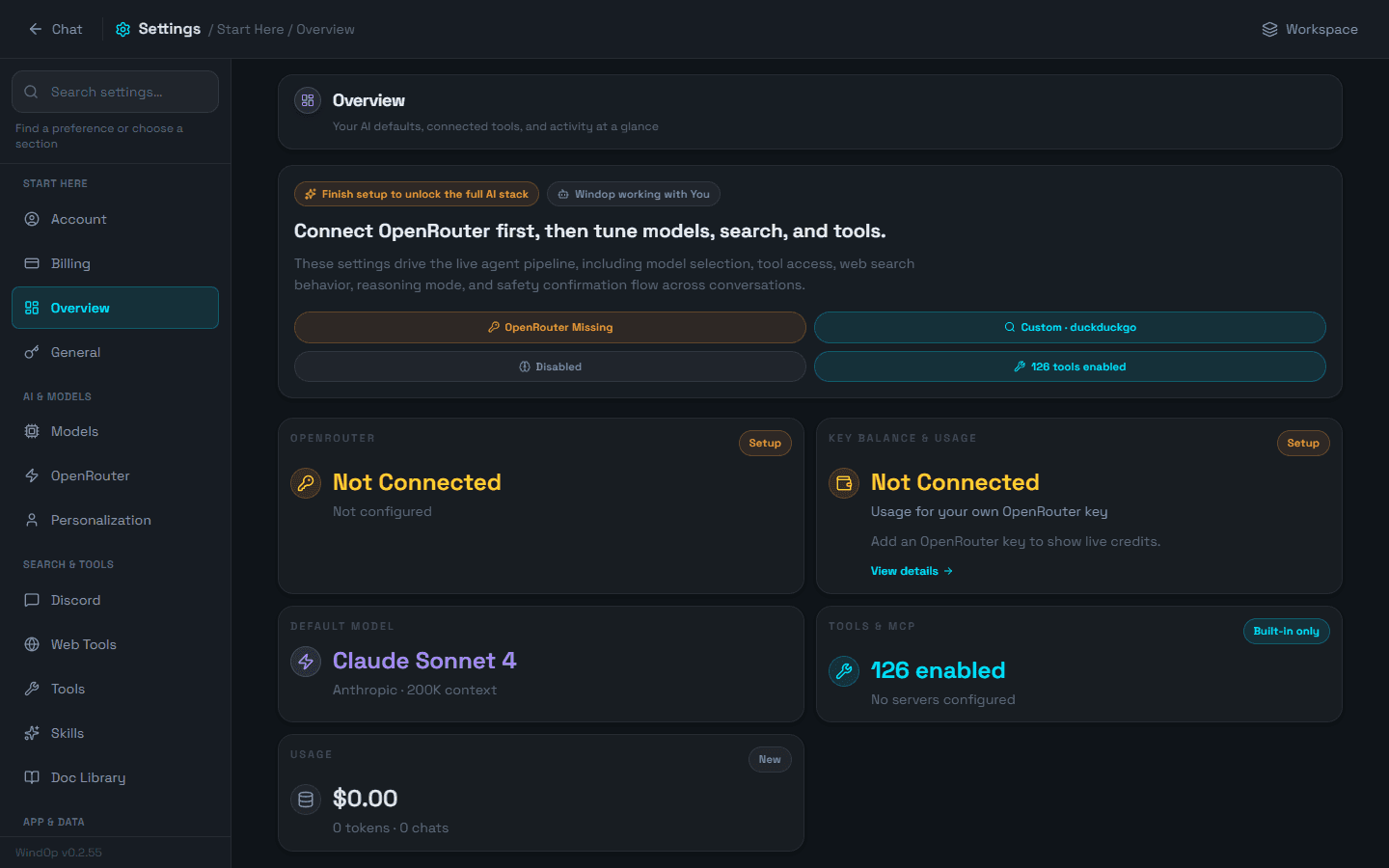
Settings has 20 sections in four groups. Search below the same way you would in the app, then jump to the guide for that section.
Start Here
Overview
AI readiness, defaults, search, tools, and usage at a glance.
Account
Profile, sign-in status, and your plan.
Read the guide →
Billing
Pro subscription, monthly allowance, and AI credit packs.
Read the guide →
General
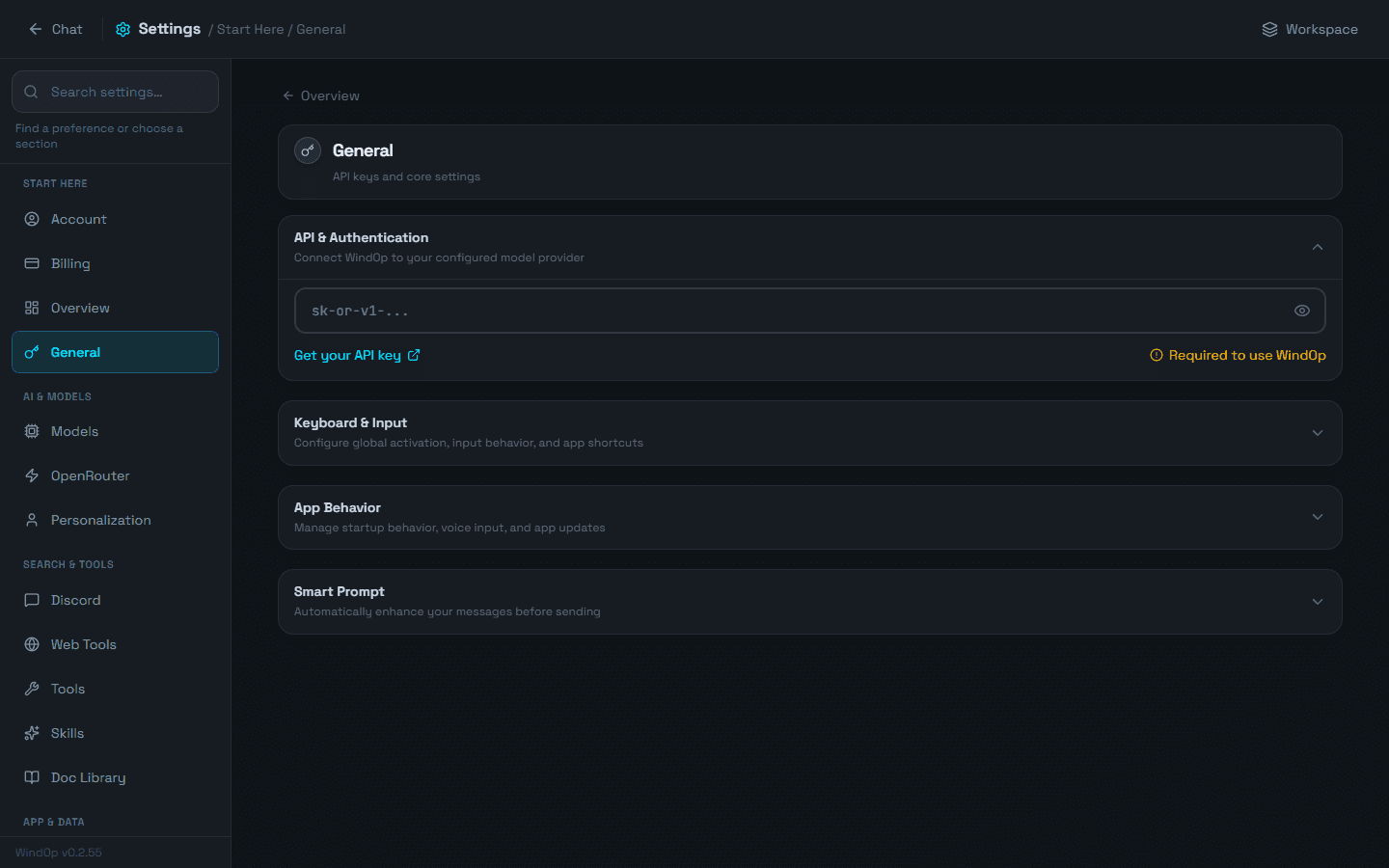
API key, global hotkey, voice input, startup, Smart Prompt, and updates.
Read the guide →
AI & Models
Search & Tools
Web Tools
Search provider and how web pages are read.
Read the guide →
Tools
Turn built-in tools and MCP servers on or off.
Read the guide →
Skills
Find, install, update, and manage reusable workflows.
Read the guide →
Discord
Bot token, allowed users, reply channels, and runtime controls.
Read the guide →
Doc Library
A local, searchable knowledge base of documentation you crawl.
Read the guide →
App & Data
Appearance
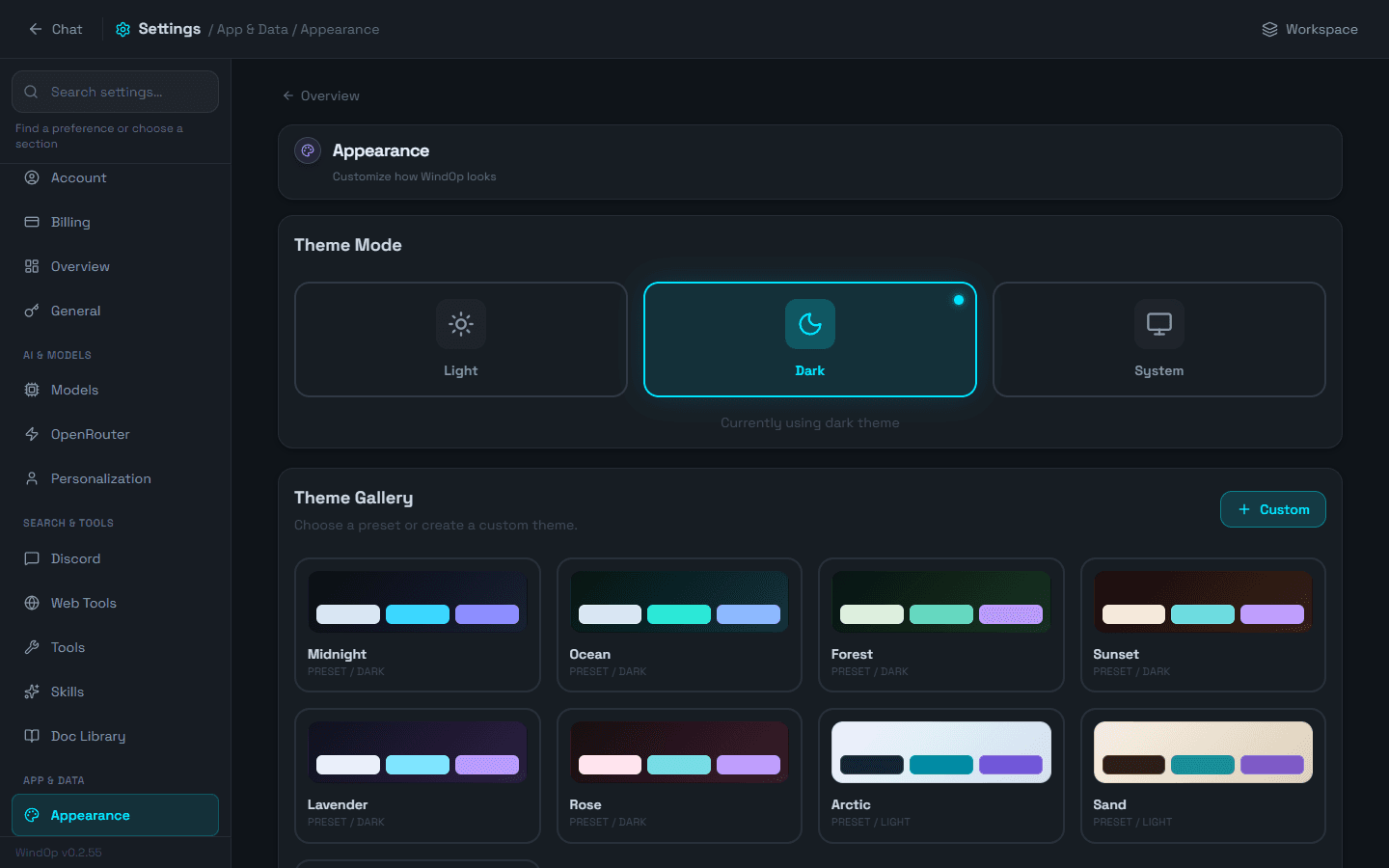
Themes, custom colors, chat bubble colors, density, background image.
Read the guide →
Memory
Conversation history and data reset controls.
Read the guide →
Storage
What is on disk, and safe cleanup of media and caches.
Read the guide →
Sync
Encrypted cloud sync across devices (Pro, preview).
Read the guide →
Scheduler
Recurring prompts, reminders, and timed jobs.
Read the guide →
Security
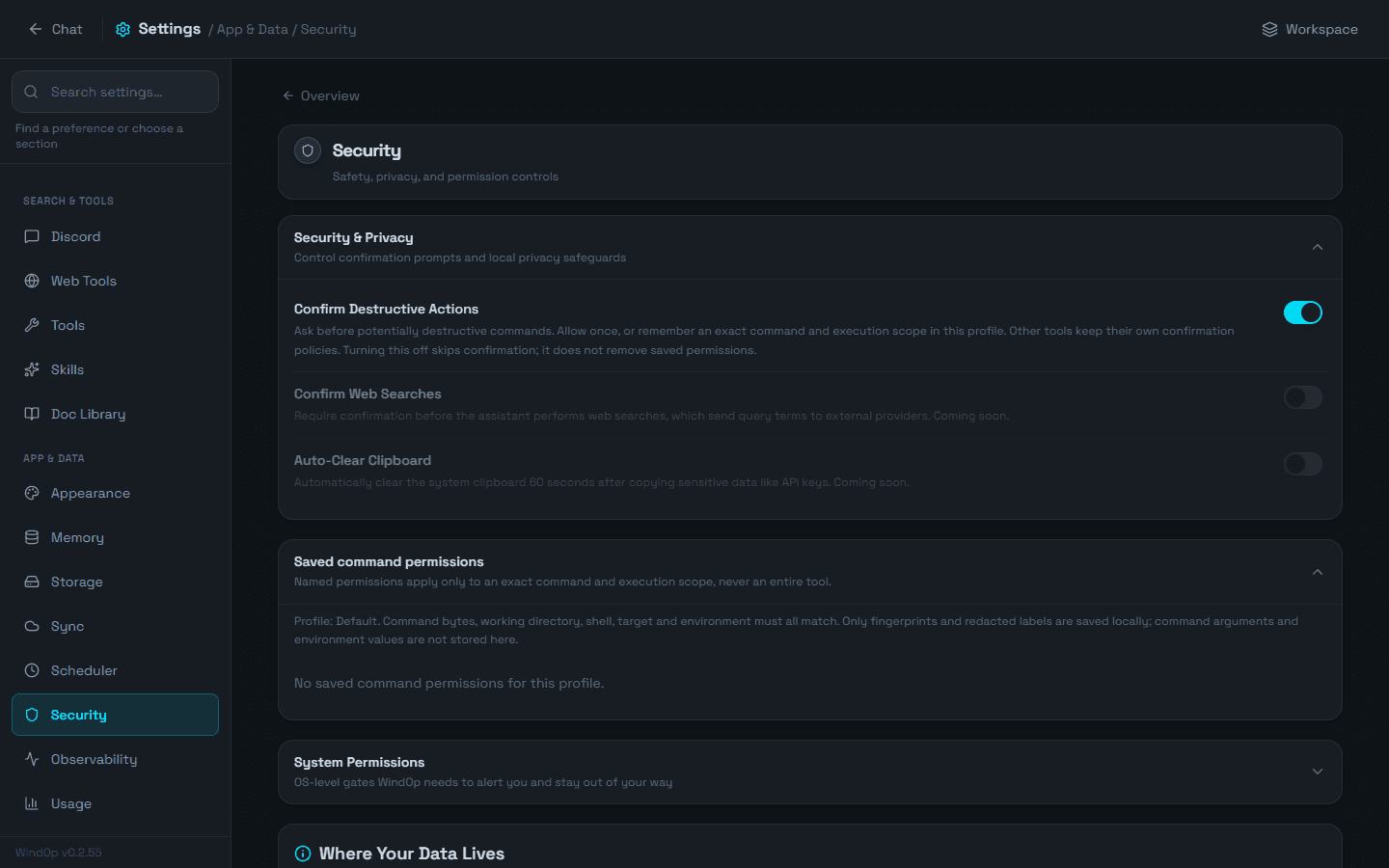
Confirmation prompts and saved command permissions.
Read the guide →
Observability
Local traces, token costs, latency, optional Langfuse export.
Read the guide →
Usage
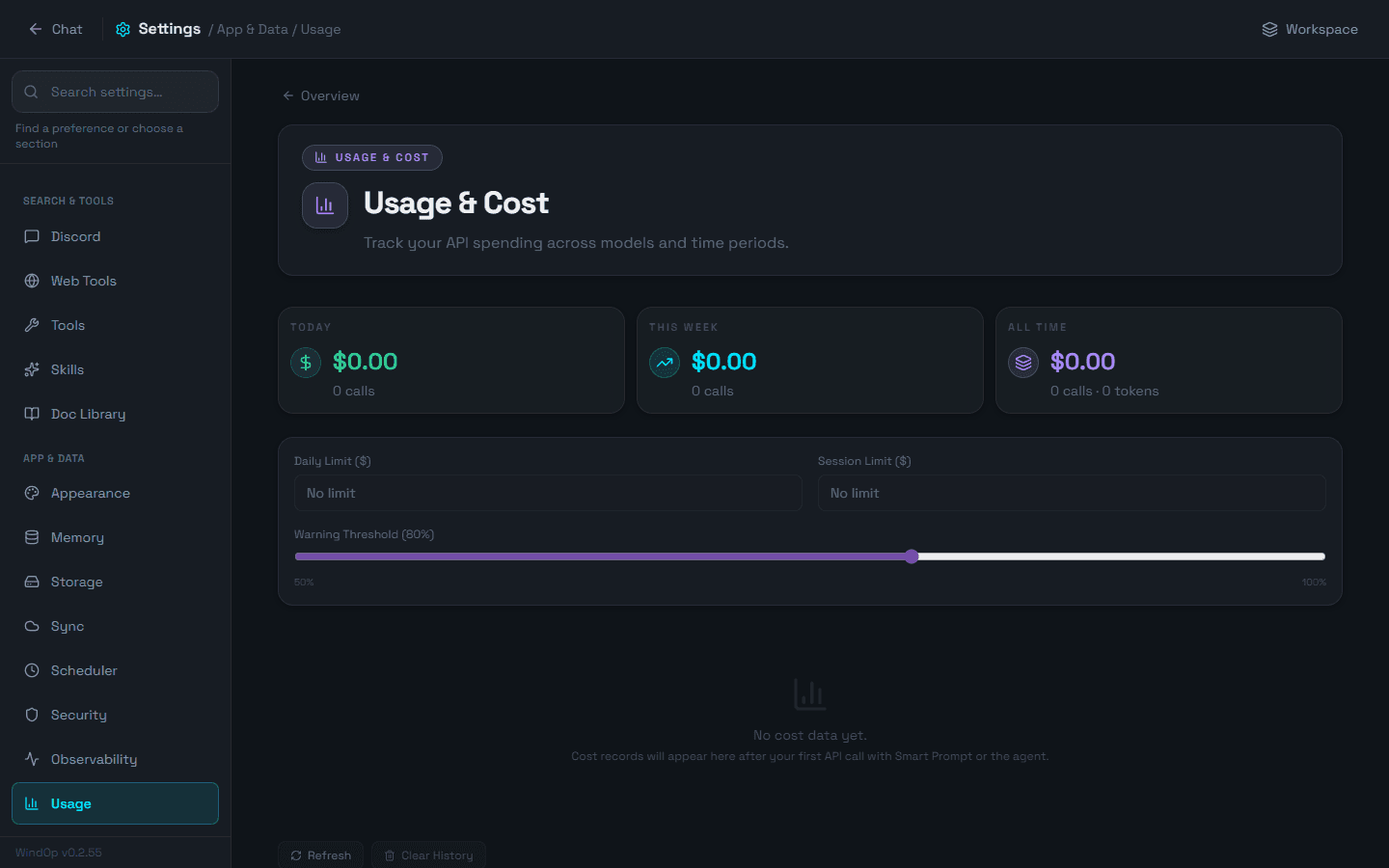
Spend history, cost by model, and budget limits.
Read the guide →
Tip
Settings saves automatically. The Settings sidebar has its own search and matches words like “api key” or “keyboard shortcut”.“I want to…” cheat sheet
| I want to… | Go here |
|---|---|
| Change the AI model | Ctrl+M or the model button in the header |
| Paste or change my API key | SettingsGeneral |
| Start a fresh chat | Ctrl+N |
| Find an old conversation | Sidebar search, or Ctrl+K and type its title |
| Group chats into projects | Folders in the sidebar (each can carry a default model and project) |
| See what I have spent | SettingsUsage |
| Set a spending limit | SettingsUsage |
| Turn a tool off | SettingsTools |
| Review commands I always allowed | SettingsSecurity |
| Change how WindOp looks | SettingsAppearance |
| Run something every morning | SettingsScheduler |
| Free up disk space | SettingsStorage |
| See my projects, skills, and tasks together | The Workspace (Ctrl+Shift+W) |
| Switch to WindOp credits (no key) | SettingsAccount |
What's next
Something missing or out of date? Tell us on the community page.